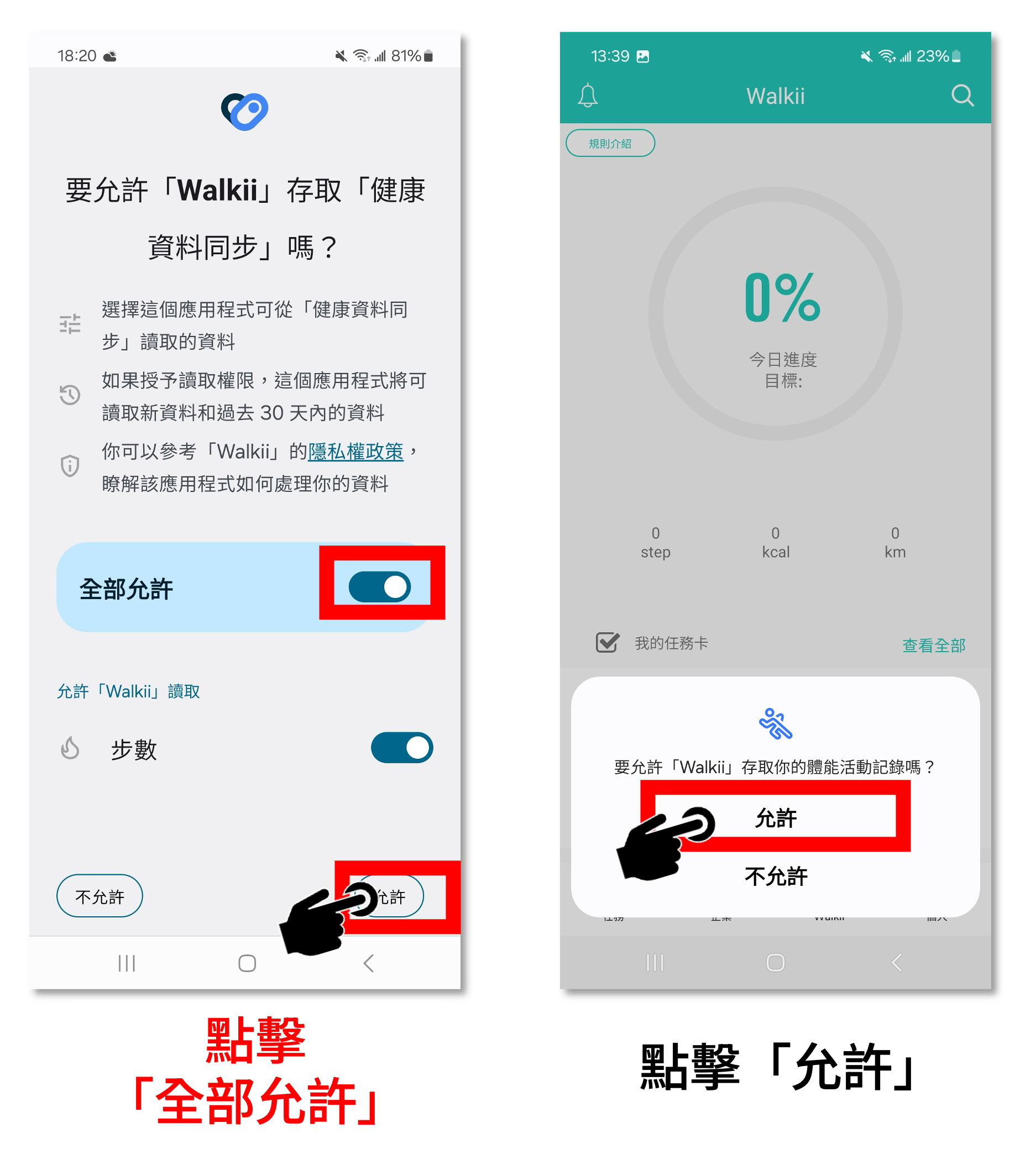
When you log in for the first time, please allow data access in Health Connect first, then enable Walkii Fitness Tracking permission.

任務時間
115/03/11-115/05/10
任務目標
(一) 個人計步
每日健走達到7,500步(約4.7公里),完成者每天可獲得2點。
加碼獎勵:
1.連續15天健走步數達7,500步,可獲得20點。
2.連續30天健走步數達7,500步,額外獲得50點。
3.連續50天健走步數達7,500步,再加碼獲得50點。
(二) 領取挑戰任務:
登入App並加入中原健走圈領取任務卡,完成任務後,依任務目標獲得指定點數:
1. InBody測量:
完成前、後測測量,可各獲得10點
2.運動分享:
拍攝運動時的照片並寫下運動後的心情,紀錄至「運動分享區」,每1篇運動分享文可獲點數1點,每日上限2篇。
3.打卡尋寶:
找尋10台AED位置並完成定位打卡,可獲得20點。
4.碼上集點:
為鼓勵參與者走入校園各健康推廣場域,將健走行動延伸至多元學習與生活情境,凡於活動期間內,在指定的宣導場域完成指定任務,即可獲得10點。
(1) 4/27~4/29校園安全週:參與衛生保健組辦理之系列健康與安全宣導活動,至本組攤位參與主題倡議,並開啟任務卡完成定位打卡。
(2) 4/28~5/3漫讀時光:完成圖書館「漫讀時光」活動,將粉絲專業留言畫面截圖,並開啟任務卡分享照片。
(3) 4/28~5/3超越AI,與書同行:完成圖書館「超越AI,與書同行」活動,拍攝借閱書籍照片,並開啟任務卡分享照片。
5.線上問答:
活動期間設計2階段活動滿意度調查,可各獲得5點。
獎勵方式
(一) 抽獎券取得方式:
參與者於活動期間累積點數達以下門檻者,可獲得相應之抽獎券:
1.累積 50點 :獲得「健走新手」1張線上抽獎券。
2.累積 100點 :獲得「健走先鋒」1張線上抽獎券。
3.累積 200點 :獲得「健走達人」1張線上抽獎券。
4.累積250點:獲得「健走菁英」1張線上抽獎券。
5.累積350點:獲得「健走霸主」1張線上抽獎券。
6.累積400點:獲得「健走王者」1張線上抽獎券。
(二) 抽獎券發放與使用:
線上抽獎券將於每月10日發放至「任務獎勵」,請於1週內完成抽獎,逾期未使用之抽獎券將自動作廢,恕不補發。
(三) 抽獎獎項內容:
抽獎獎品為「商品禮券」及精選好禮,數量有限,依實際抽獎結果發放。
(四)兌換與領獎方式:
得獎名單將於活動結束後公告於iTouch,請得獎者於指定期間內攜證至衛生保健組領取獎品;逾期未領取者,視同放棄得獎資格。
【STEP 1. 安裝APP / Install the App】
- 下載 Walkii app。( 請確認更新到最新版本 )
Download the Walkii App. (Please ensure it is updated to the latest version.)


- 選擇一種『註冊方式』完成帳號登入
Choose a registration method to log in. -
快速體驗 (Quick Experience):限制單次登入使用,如移除APP或更換手機將 “ 無法回復資料 ”
Limited to a single session. If you uninstall the app or switch phones, data cannot be recovered. - 電子信箱登入 (Email Login):綁定您的電子信箱,如刪除APP或更換手機,可透過電子信箱“ 回復帳號資料 ”。
Bind your email address. If you delete the app or change phones, you can recover your account data via email. - 備註:若綁定電子信箱,系統會寄認證信到電子信箱,如果沒發現系統寄的認證信,可以到垃圾郵件中找找看。
Note: If you bind an email, a verification letter will be sent. Please check your spam folder if you do not see it in your inbox.

【STEP 2. 同步手機資料 / Sync Mobile Data】
【iOS】同步Apple Health / Sync Apple Health
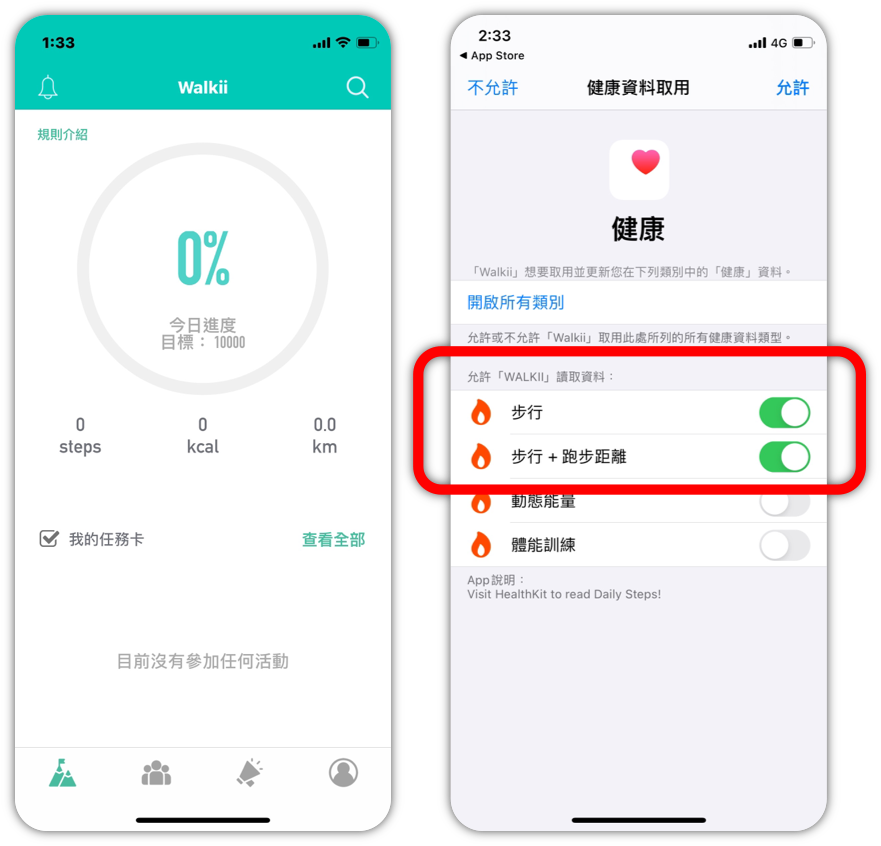
- 初次登入會跳出同步選項,點選『步行』,然後點選「允許」即可完成同步
The sync option will appear during the first login. Select "Steps" and then "Allow" to complete synchronization. - 如果錯過設定,您還可以按以下步驟:
在蘋果手機點選『設定』→ 隱私權→健康→Walkii,確認是否開啟『步行』
If you missed the initial setup: Go to Settings → Privacy → Health → Walkii and ensure "Steps" is enabled.
【Android】同步Health Connect
- 登入前請先確認是否有下載Health Connect 跟 GoogleFit APP(兩個都要載!)
🔷 Health Connect :點此下載
🔷 Google Fit :點此下載 -
Before logging in, please make sure you’ve installed both the Health Connect app and the Google Fit app (you need both).
🔷 Health Connect: Tap here to download
🔷 Google Fit: Tap here to download
-
初次登入時,需先允許Health Connect資料,再開啟Walkii體能紀錄授權
-
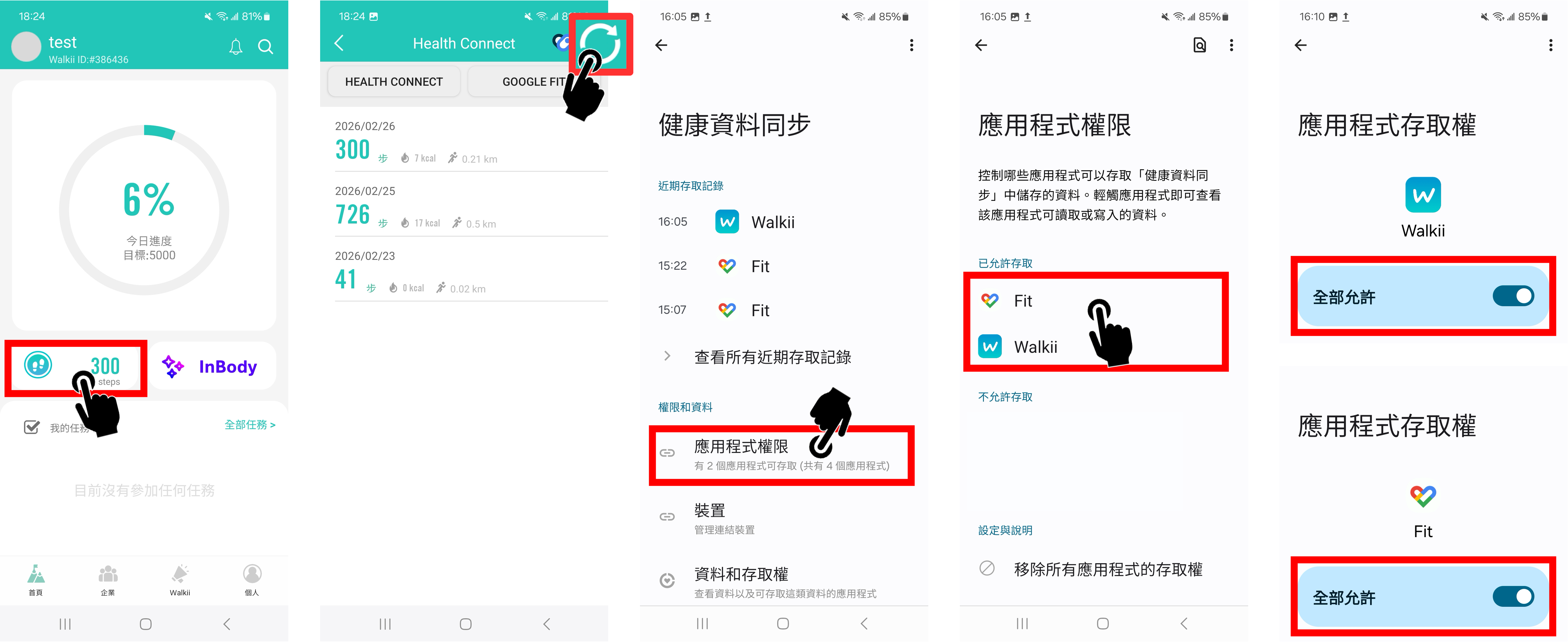
- 點擊首頁左邊的步數按鈕 → 按右上角的重整符號,可以進入Health Connect的畫面
點擊「應用程式權限」後檢查Fit 跟 Walkii 這兩個是否都有在【已允許存取】區域 - Tap the Steps button on the left side of the Home page → then tap the Refresh icon in the top-right corner to open the Health Connect screen.
- After that, tap App permissions and check whether Fit and Walkii are both listed under Allowed access.
【STEP 3. 加入運動圈 / Join Corporate Circle】
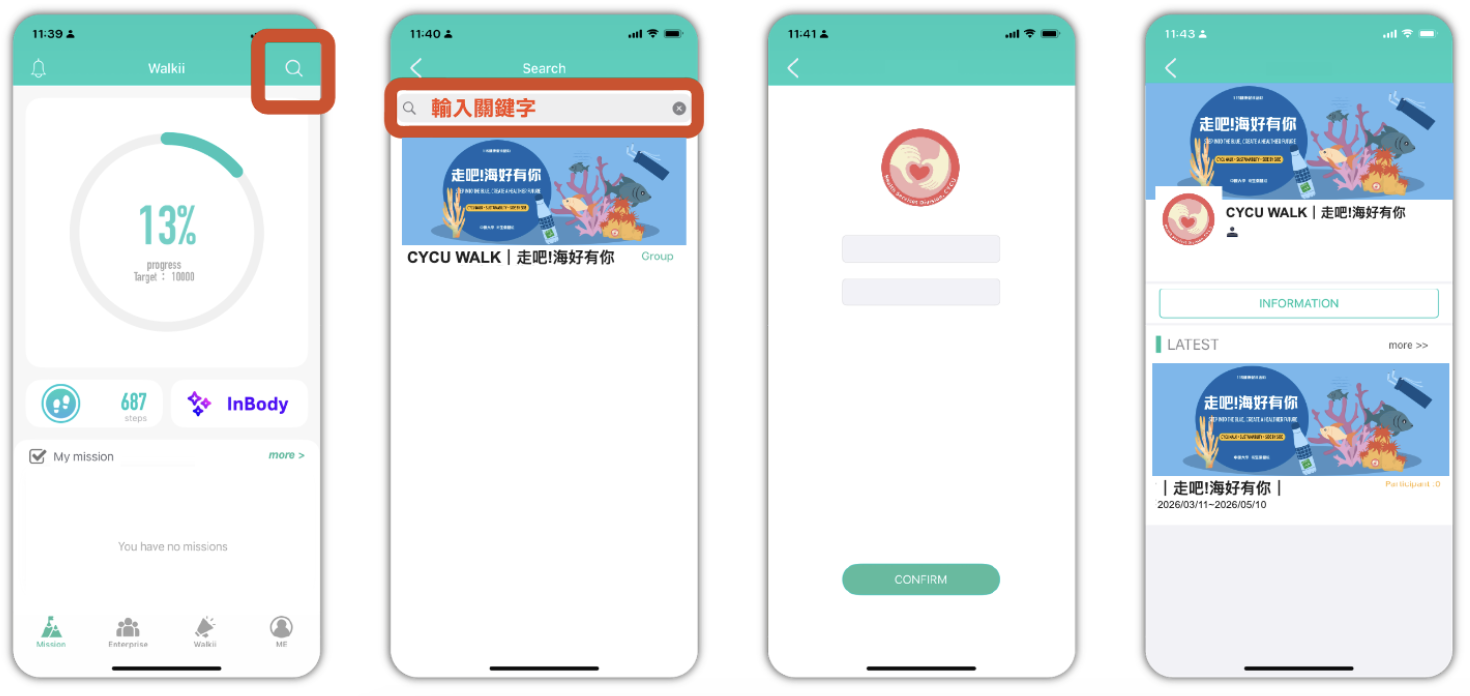
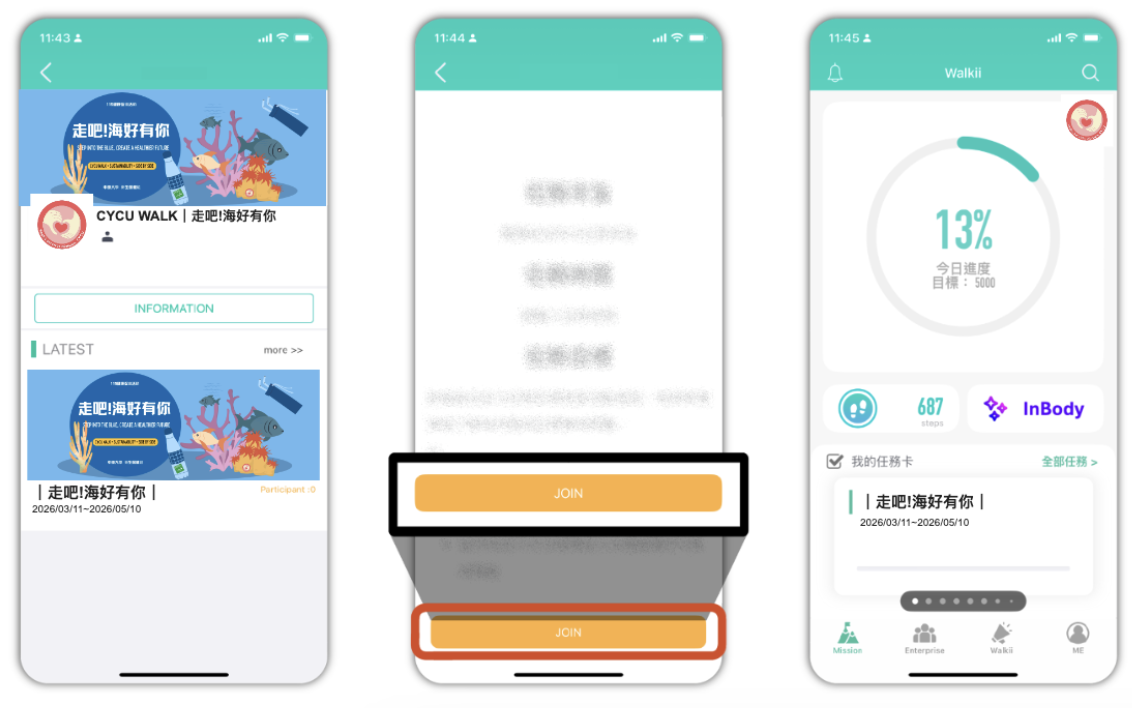
- 點選搜尋(右上角放大鏡),輸入『CYCU』,點選加入『CYCU WALK|走吧!海好有你』運動圈
Click Search (magnifying glass icon), enter "中原大學" and click to join the club. - 登入資訊 / Login Info:
帳號 (Account):『學號/人事代碼』(Student ID / Employee ID)。
密碼 (Password):『學號/人事代碼』(Student ID / Employee ID)。
【STEP 4. 取得任務卡 / Obtain the Mission Card】
- 點入任務卡,點選『我要參加』
Enter the Mission Card and click "Join Now." - 確認參加後,可於APP首頁找到任務卡
After confirming, you can find the Mission Card on the app homepage.
健走計步 / Step Tracking
【STEP 1. 上傳數據 / Upload Data】
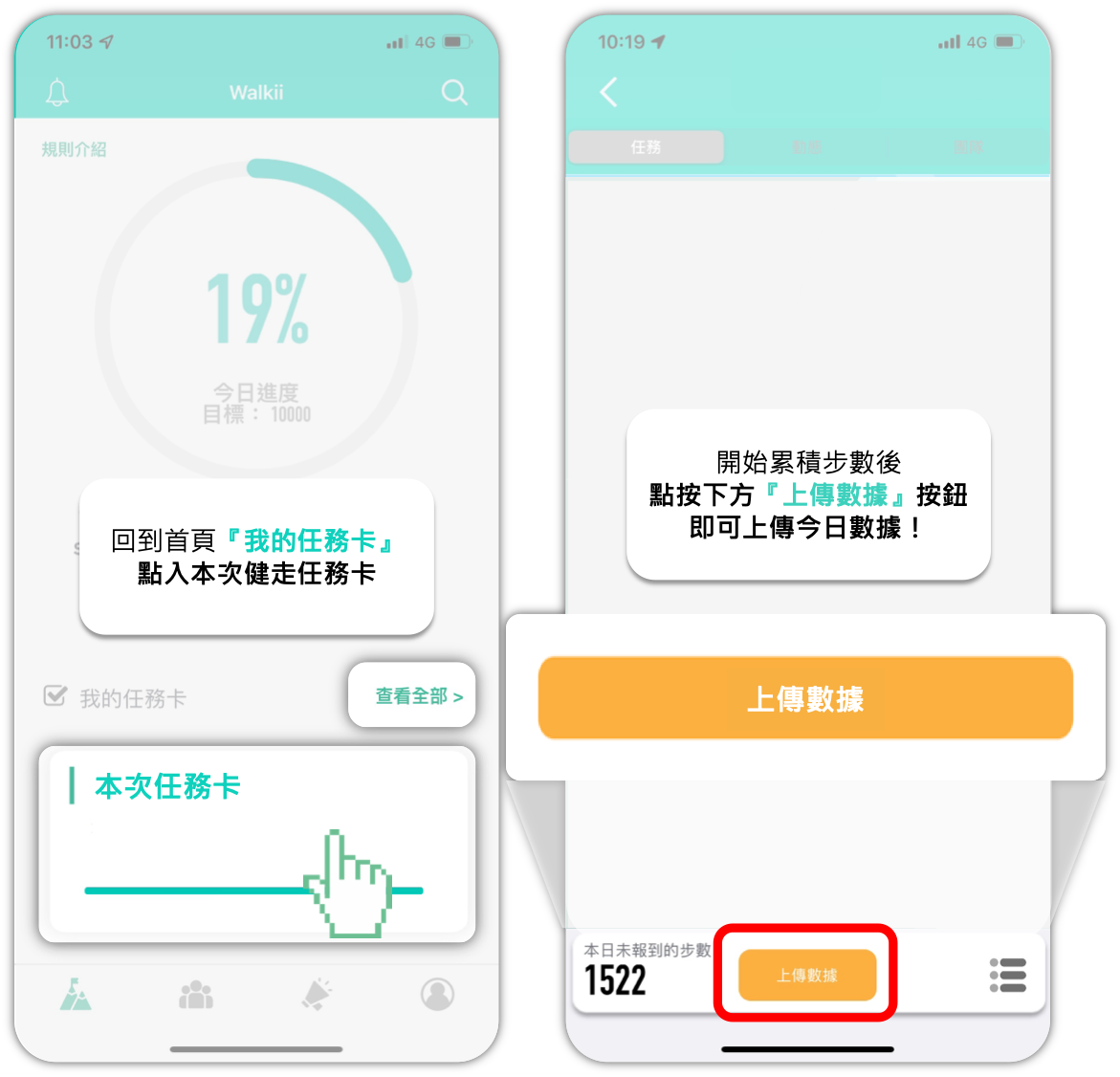
- 完成領取任務卡即可回到首頁,點入本次活動任務卡『健走計步』
Go to the homepage and enter the activity card "SPACE Step Counter." - 點選『上傳數據』上傳當日數據,若無新的步數則顯示『紀錄都已同步』
Click "Upload Data" to sync. If there are no new steps, it will show "Records are synchronized." -
小提醒:若在完成上傳後當天還有累積新的步數,都可以再打開APP把新累積的步數上傳!
Reminder: If you accumulate more steps later in the day, you can reopen the app to upload them!
【STEP 2. 步數數據7日內補登 / 7-Day Data Back-filling】
-
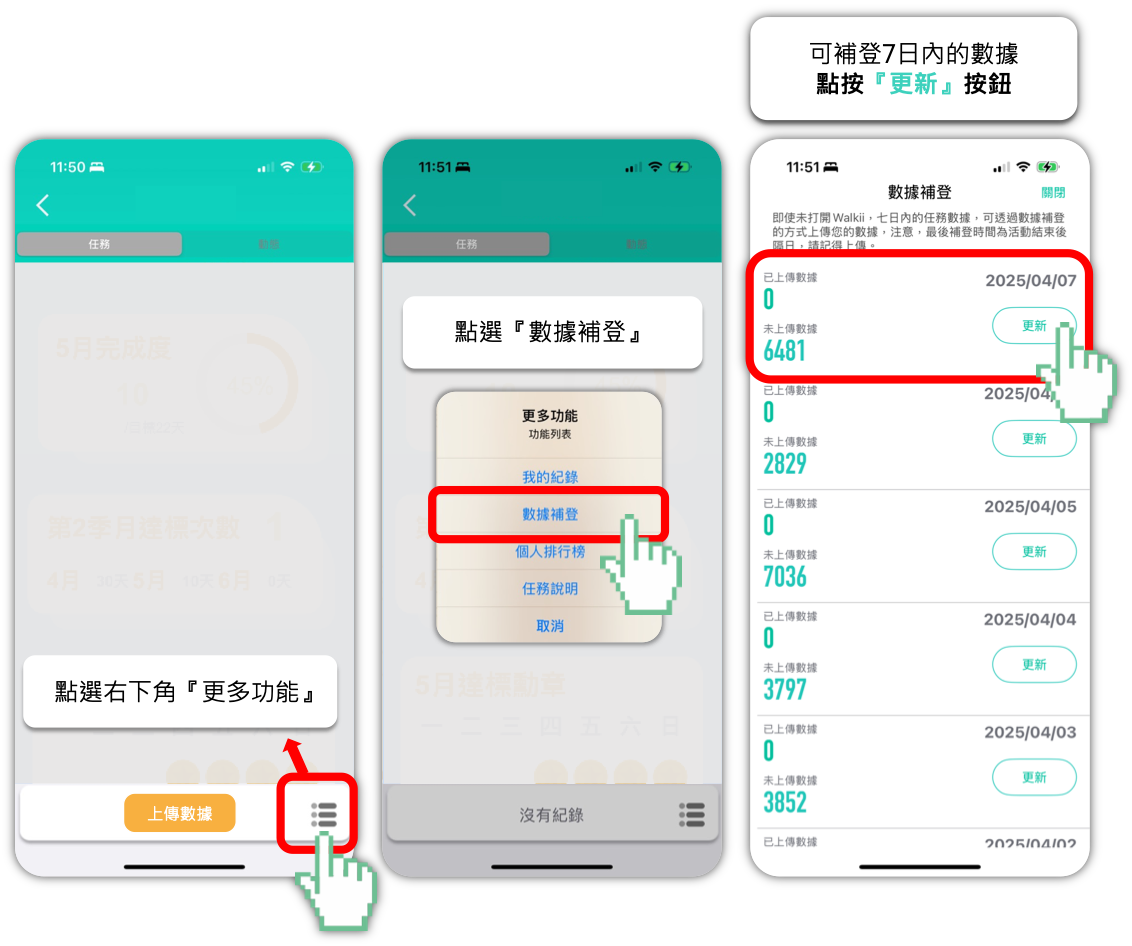
如當日忘記打開 app 同步紀錄,可使用 app 7日內『數據補登』功能手動上傳您的紀錄
If you forget to sync on a specific day, you can use the "Back-fill Data" function within 7 days. - 點入任務卡畫面右下角圖示,點選『數據補登』上傳七日內的步數數據
(如需使用補登功能,需先上傳一筆數據→進入任務卡後,點按「上傳數據」)
Tap the icon in the bottom right of the Mission Card and select "Data Back-fill" to upload steps from the last 7 days. (Note: You must upload at least one current record first.)
分享 / Sharing
【STEP1. 打開任務卡 / Share Photos】
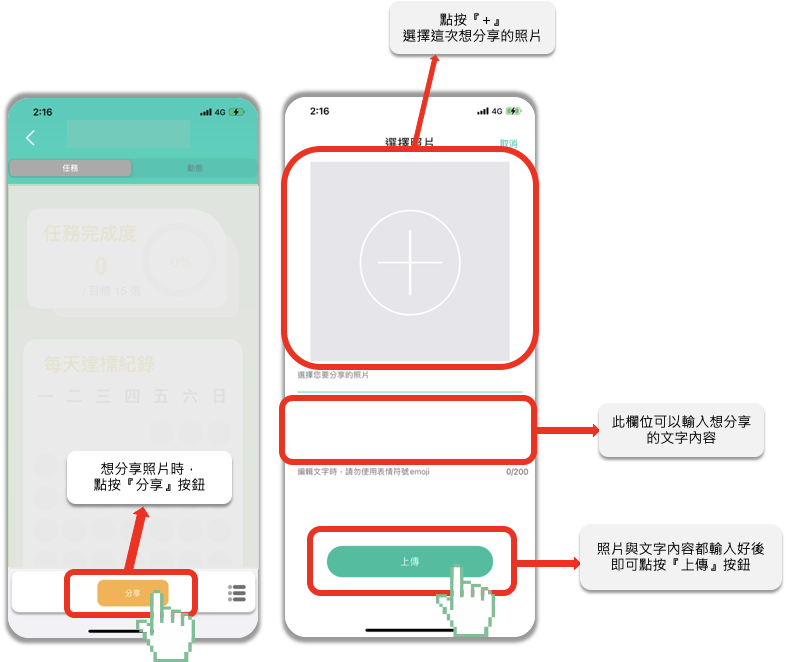
- 打開任務卡後,點按下方『分享』按鈕 / Open the card and click the "Share" button.
- 點按『+』開啟相簿選擇想分享的照片 / Click "+" to select a photo from your album.
- 下方空白處可輸入關於這張照片的說明,填寫完成即可點按『上傳』按鈕 / Enter a description and click "Upload."
- 即刻分享到動態牆上! / Share it instantly to the activity wall!
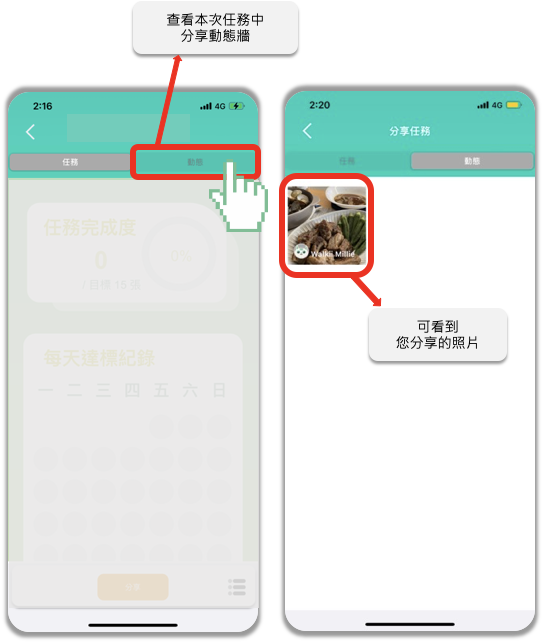
【STEP2. 查看動態牆 / View Status】
- 點按右上角的『動態』頁面 / Click the "Status" page in the top right.
- 即可看到本次任務中所有分享的內容 / View all shared content for this mission.
問答 / Q&A
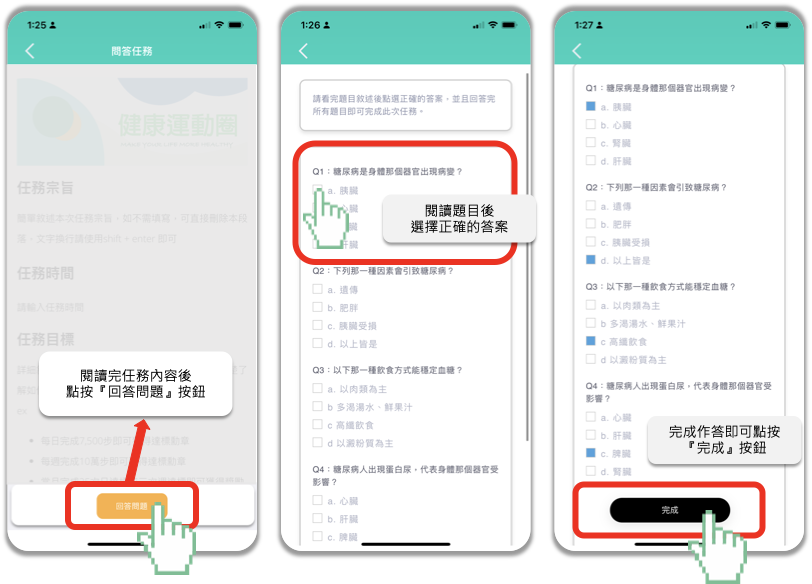
【STEP1. 打開任務卡 回答題目 / Answer Questions】
- 打開任務卡後,閱讀本次任務內容 / Open the card and read the mission content.
- 閱讀完後即可點按下方『回答問題』按鈕,開始作答! / Click "Answer Questions" to start.
- 完成填寫後,點按下方『完成』按鈕 / Click "Finish" once complete.
打卡 / Check-in (GPS)
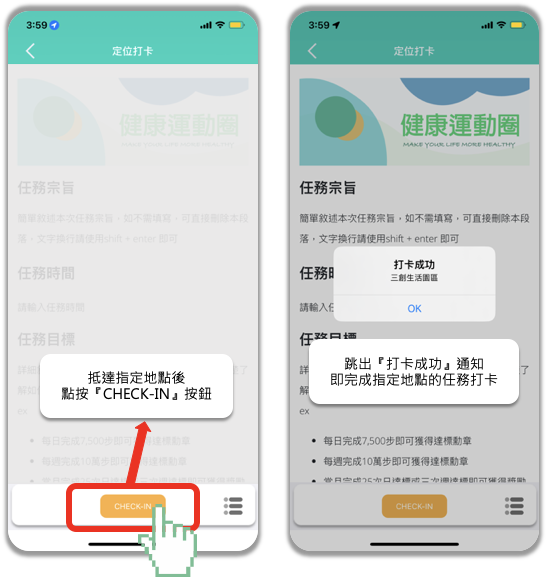
【STEP1. 打開任務卡 完成定位打卡 / Location Check-in】
- 到達指定地點後,打卡Walkii APP中的定位打卡任務卡 / Arrive at the location and open the check-in card.
- 打開任務卡後,點按下方『CHECK-IN』打卡按鈕 / Click the "CHECK-IN" button.
- 跳出『打卡成功』通知,即完成指定地點的任務打卡 / Receive the "Check-in Successful" notification to complete.
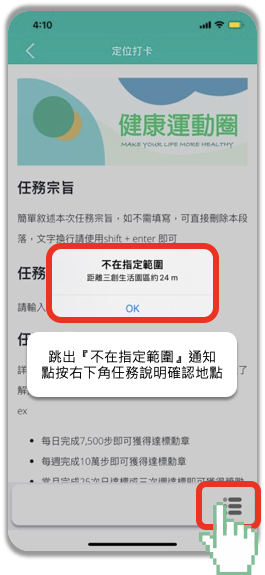
小提醒:若跳出不在指定範圍,可以點入右下角的「功能說明」按鈕,確認地點位置後前往;
Reminder: If you are "Out of Range," click "Function Description" to confirm the exact location.
若已到達指定地點但無法完成打卡,請先拍下現場照片並聯繫Walkii Line客服,客服人員會協助您處理!
If you are at the location but cannot check in, please take a photo of the site and contact Walkii Line customer service.
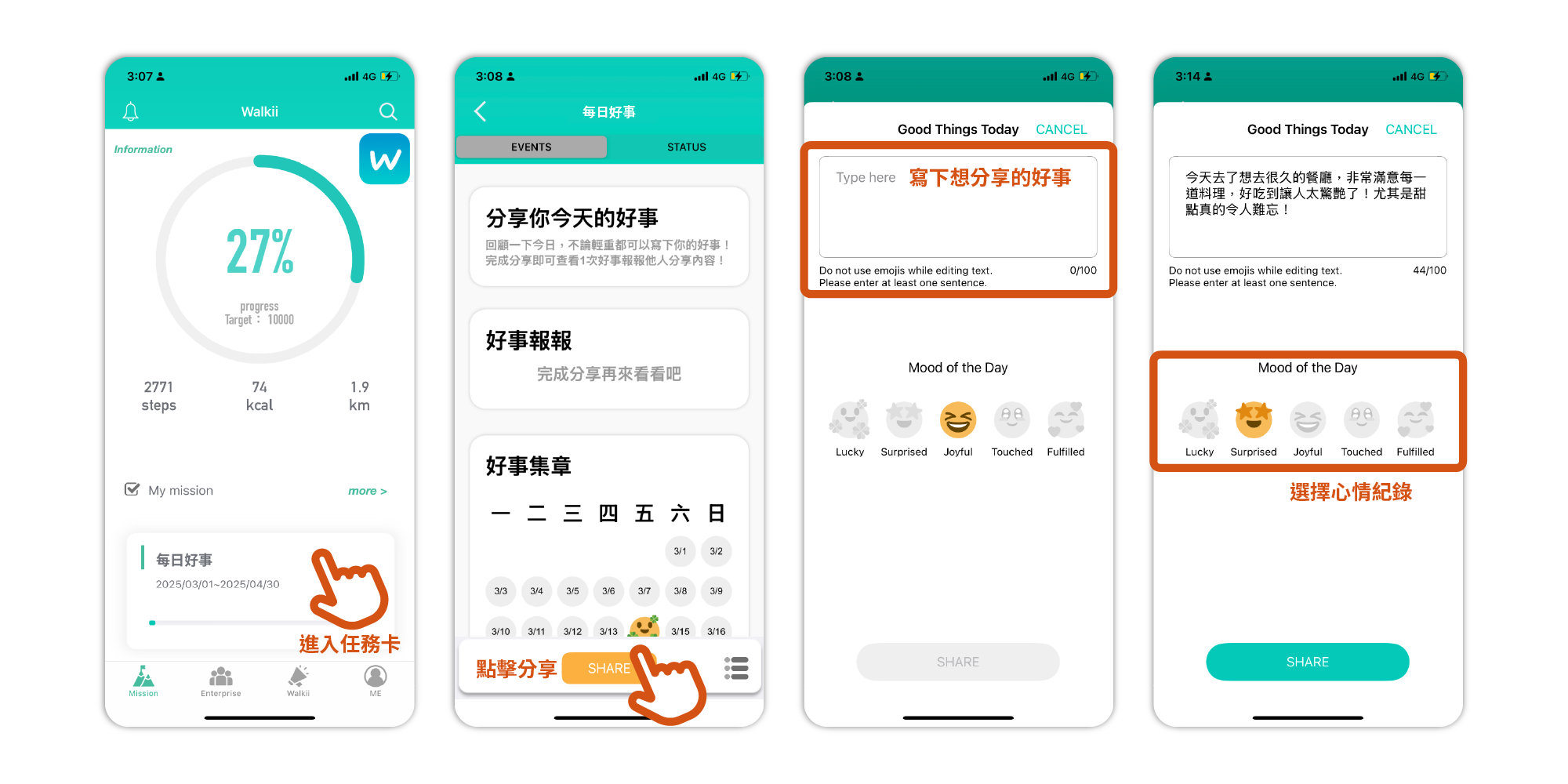
好事分享 / Share Good Things
【 打開任務卡 上傳你今天遇到什麼好事吧! / Open the card and share something good today! 】
- 點擊『分享』,即可進入分享頁面
Click "Share" to enter the sharing page. - 點按上方框框中,寫下想分享的好事
Write down the good thing you want to share in the box above. - 於下方選擇今日心情
Select your mood for today below. - 確認沒問題,點按『分享』按鈕即完成今日分享!
Click the "Share" button to complete your post!
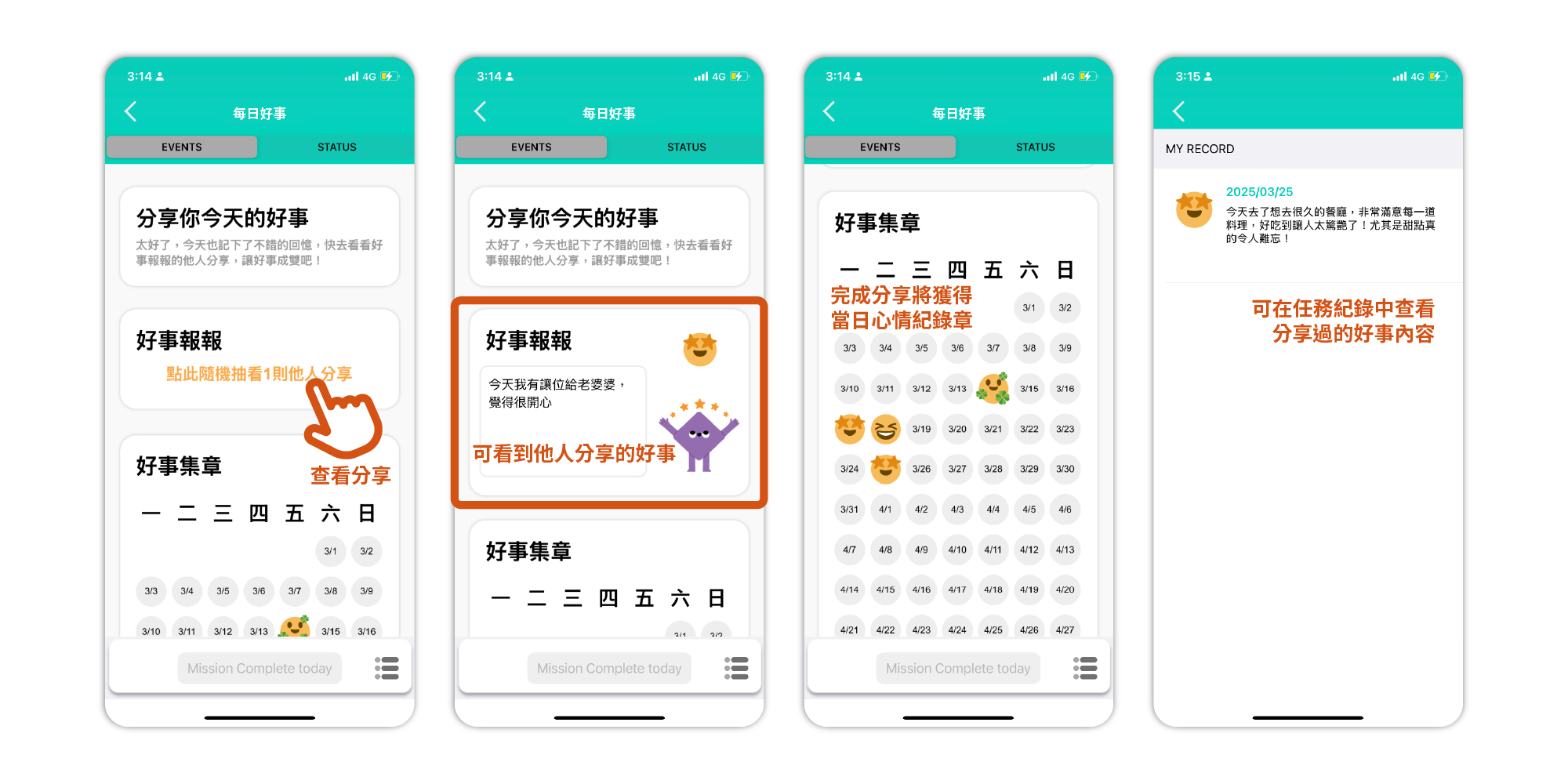
【 看看別人遇到什麼好事吧! / See what good things happened to others! 】
- 點擊『好事報報』,即可看到別人分享的好事
Click "Good News" to see what others have shared.
體感居家健身 / Fitness Challenge (Home Workout)
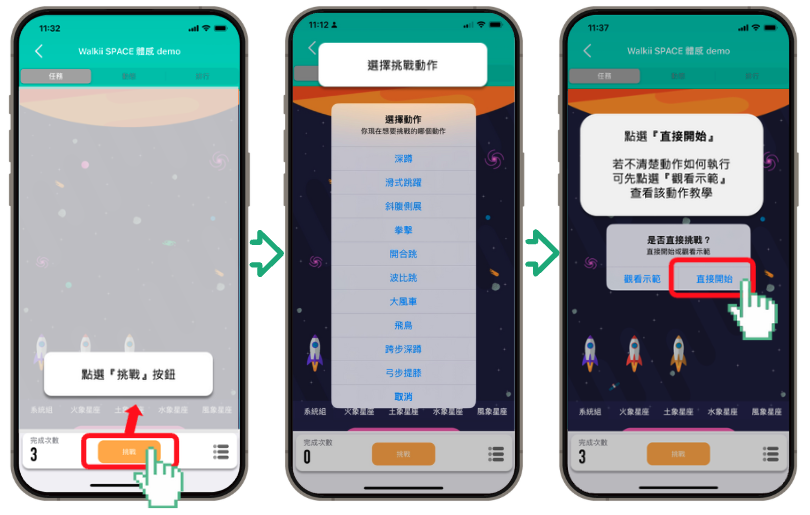
【STEP 1. 打開任務卡 / Open Mission Card】
- 打開任務卡
Open the Mission Card. - 點擊『挑戰』按鈕,即可選擇動作
Click "Challenge" to select an action. - 點選『直接開始』
Select "Start Now." - 若不清楚動作如何執行可先點選『觀看示範』查看該動作教學
If unsure about the movement, click "Watch Demo" for the tutorial.
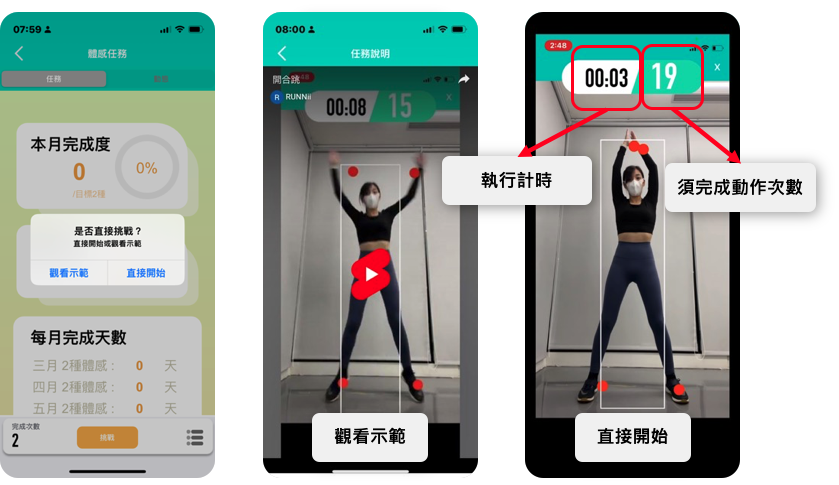
【STEP 2. 開始挑戰 / Start Challenge】
- 點選『觀看示範』或是『直接開始』
Select "Watch Demo" or "Start Now." - 畫面上方標示「執行計時」、「需完成動作次數」
The top of the screen displays the "Timer" and "Required Repetitions."
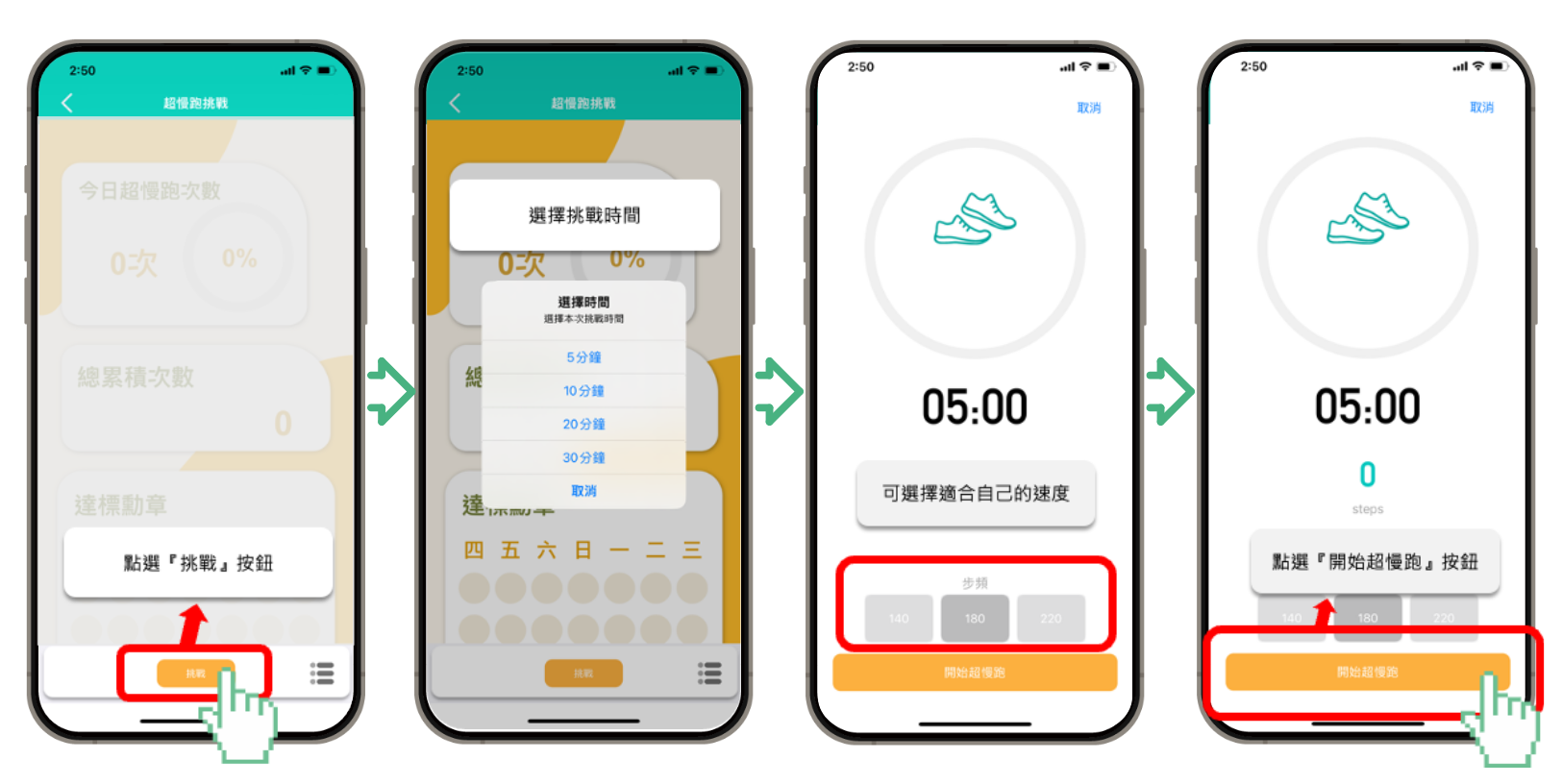
超慢跑 / Slow Jogging
【 打開任務卡 開始超慢跑 / Open Mission Card to Start Slow Jogging 】
- 點擊『挑戰』,即可選擇挑戰時間
Click "Challenge" to choose the duration. - 可選擇適合自己的速度
Select a speed that suits you. - 點選『開始超慢跑』按鈕,開始跑吧!
Click "Start Slow Jogging" and begin!
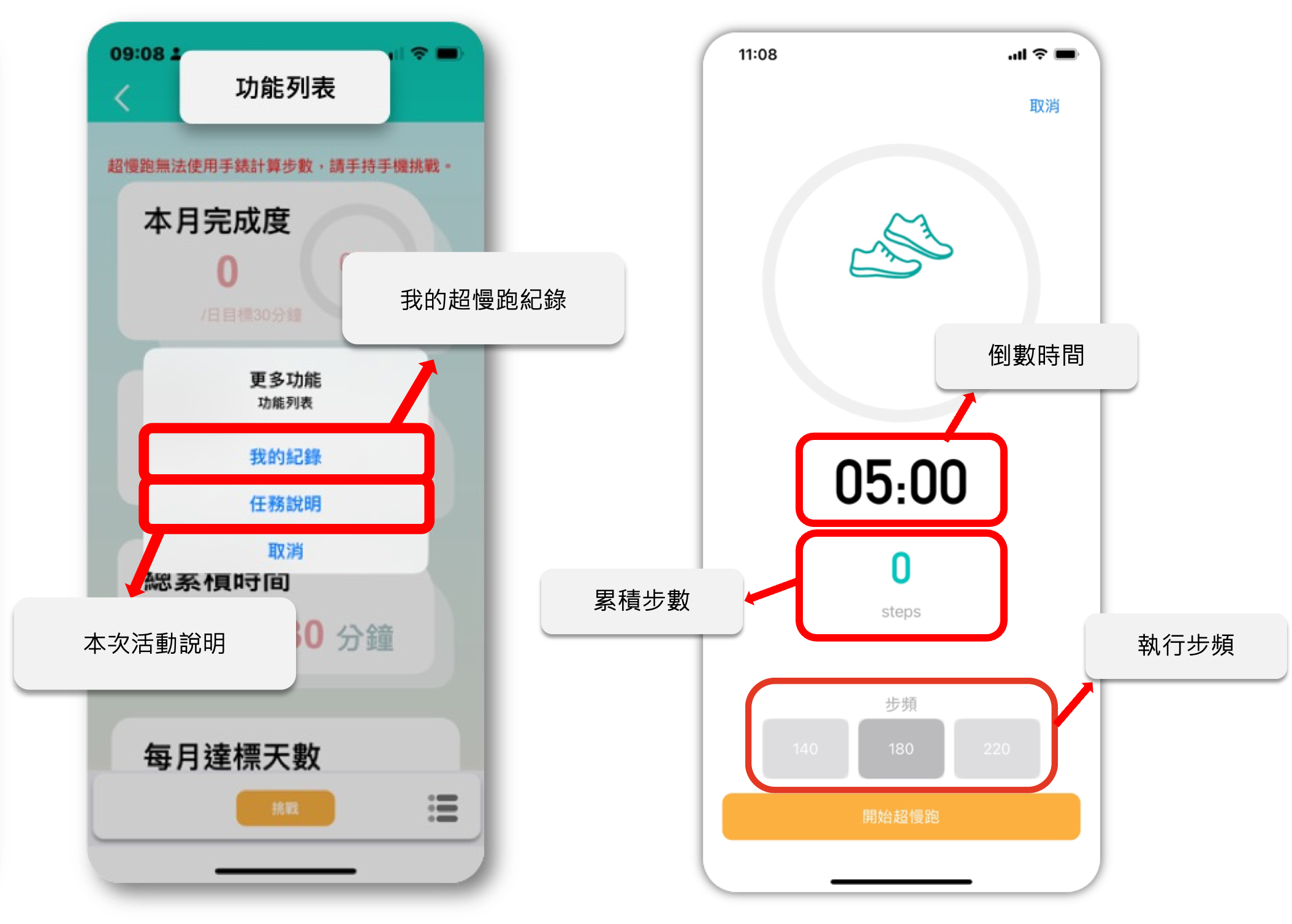
【介面說明 / UI Description】
- 『功能列表』可以查看紀錄、任務說明與動作教學
"Function List" allows you to view records, mission details, and tutorials.
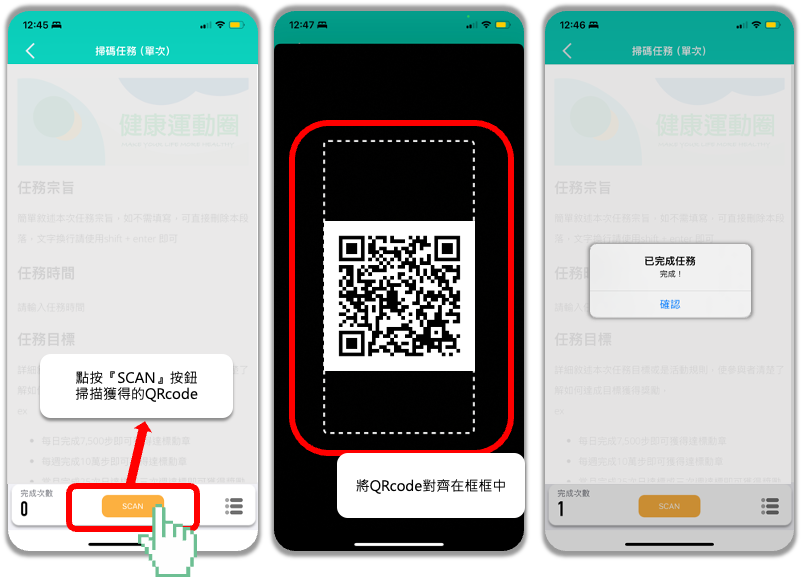
QR碼簽到 / QR Code Check-in
【STEP1. 打開任務卡 完成QRcode掃碼 / Open Card & Scan QR Code】
- 打開任務卡後,點按下方『SCAN』掃碼按鈕
Open the card and click the "SCAN" button. - 開啟掃碼相機後,即可找到本次QRcode完成掃碼
Once the camera is open, scan the designated QR code.
小提醒:本次掃碼任務需使用Walkii APP掃碼任務卡才能完成報到哦!
Note: You must use the Walkii App's scanner to complete the check-in!
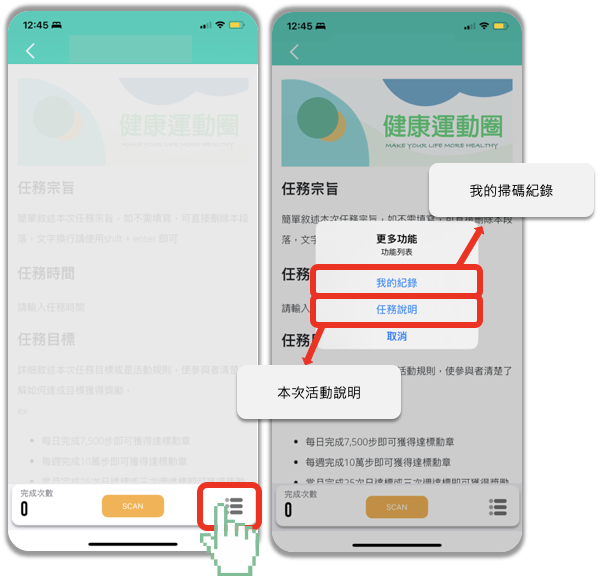
【STEP2. 查看任務說明與記錄 / View Mission Details & Records】
- 點按右下角的『選單』按鈕
Click the "Menu" button in the bottom right. - 可查詢所有掃碼記錄以及本次任務說明
Check all scanning records and mission descriptions here.
InBody量測 / InBody Measurement
【STEP 1. 打開InBody任務卡 / Open InBody Card】
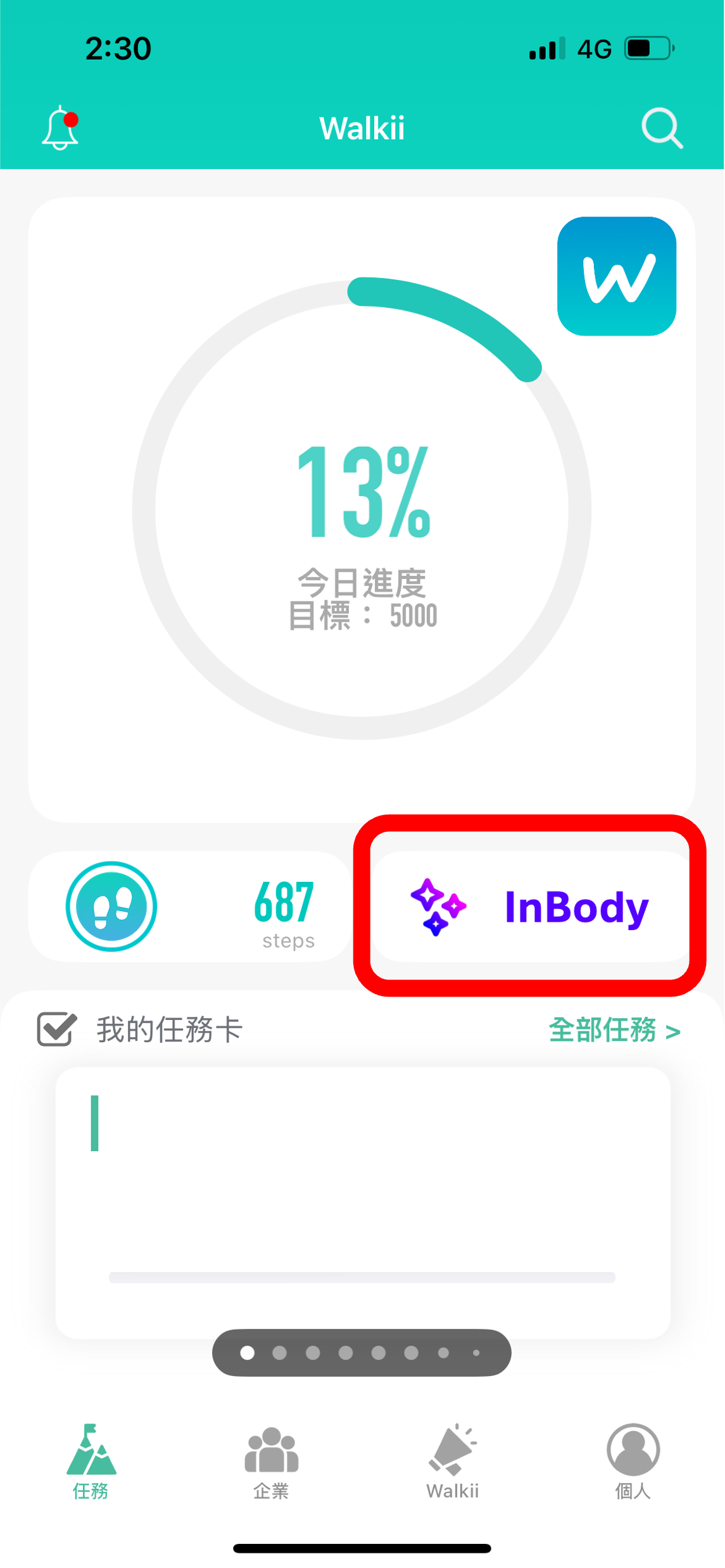
- 於首頁,點入『InBody』任務卡 / On the homepage, enter the "InBody" Mission Card.
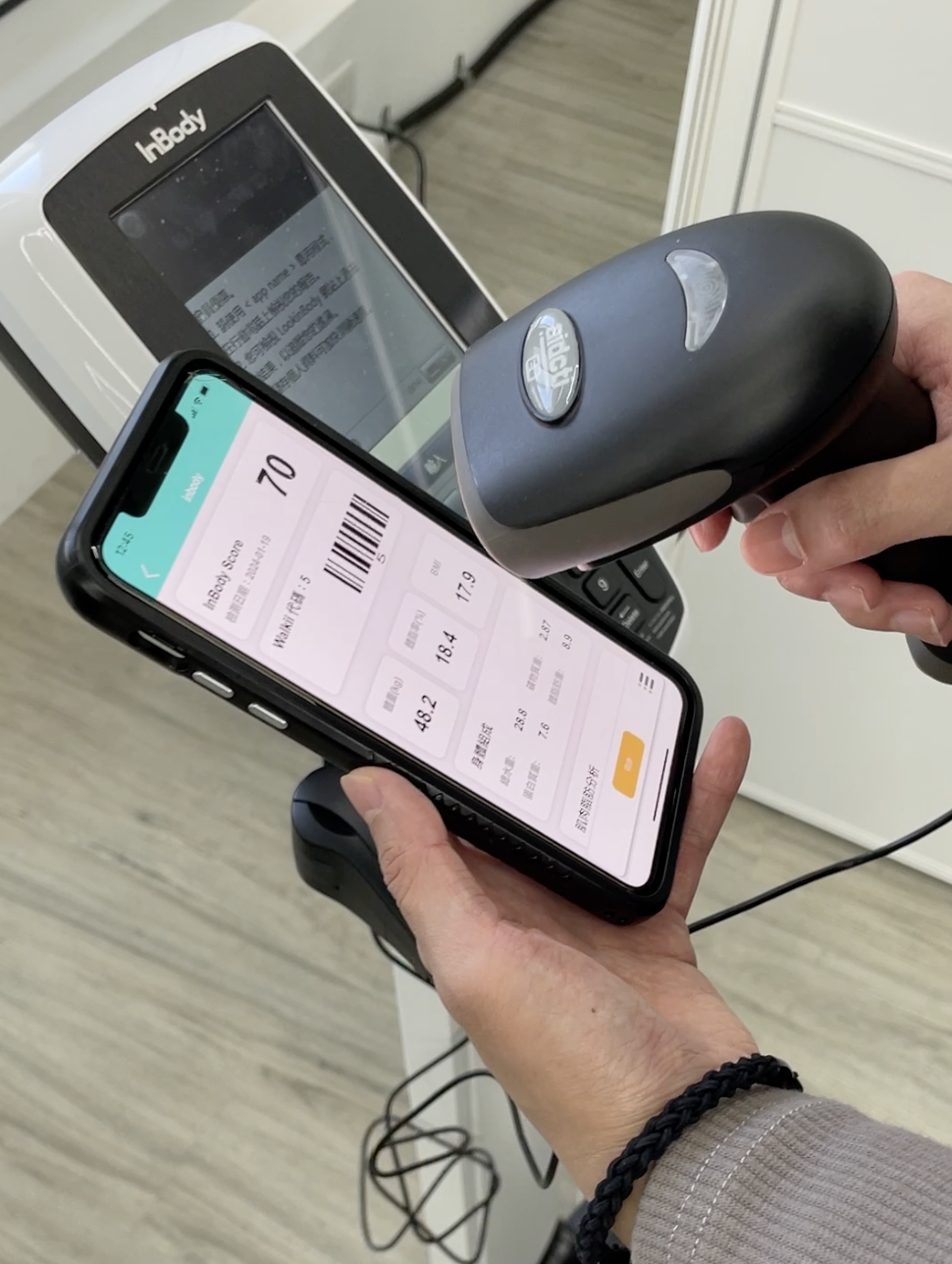
【STEP 2. 使用掃碼機掃碼條碼 / Scan Barcode】
- 使用機器的掃碼機,掃描任務卡內的專屬個人條碼 / Use the InBody machine's scanner to scan your personal barcode in the app.
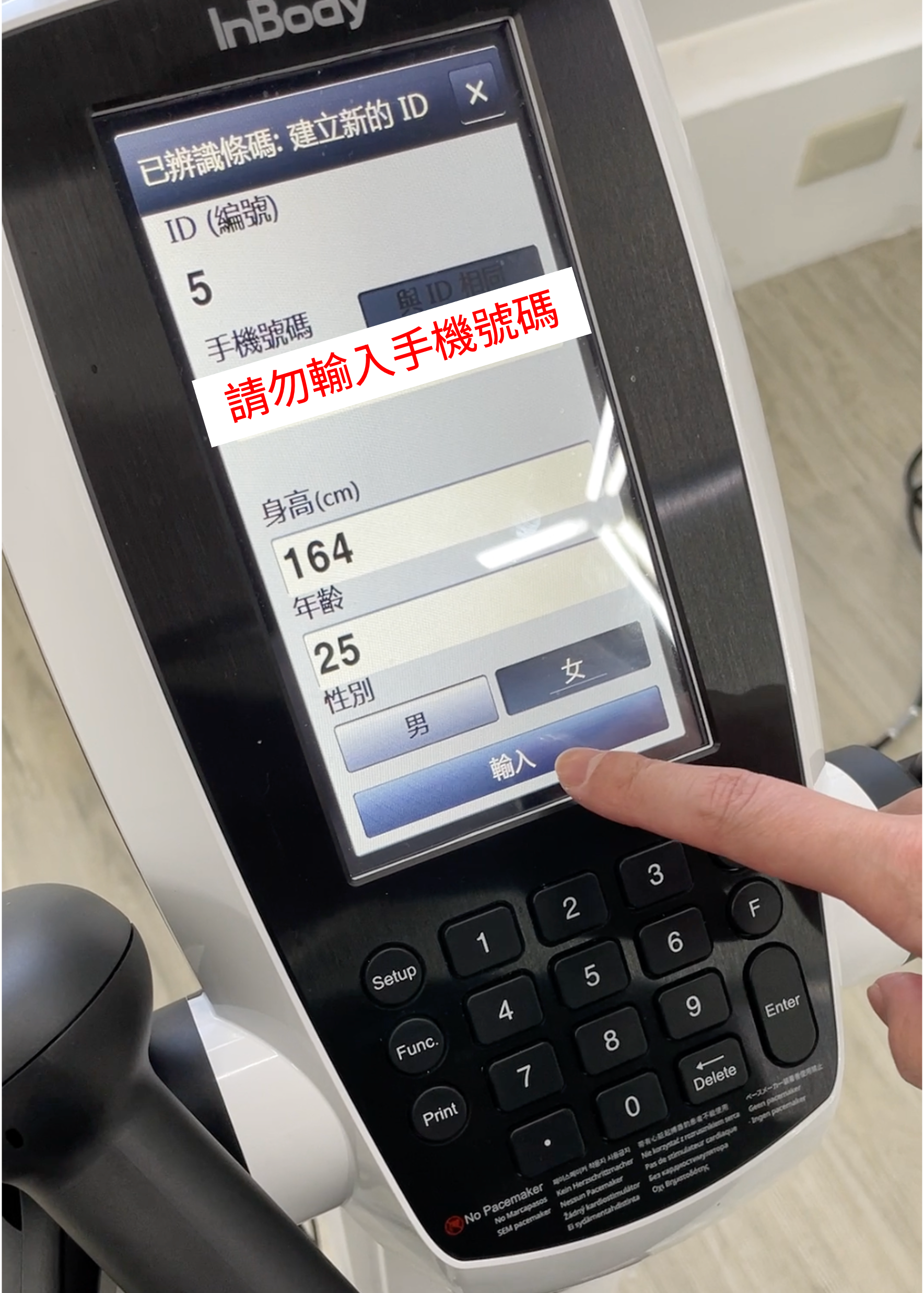
【STEP 3. 確認個人資訊 / Confirm Info】
- 於InBody上確認個人資訊是否正確 / Confirm your personal info on the InBody screen.
- 請勿輸入手機號碼 / DO NOT enter your phone number.
- 確認後,點按『輸入』按鈕 / Click "Enter" after confirmation.
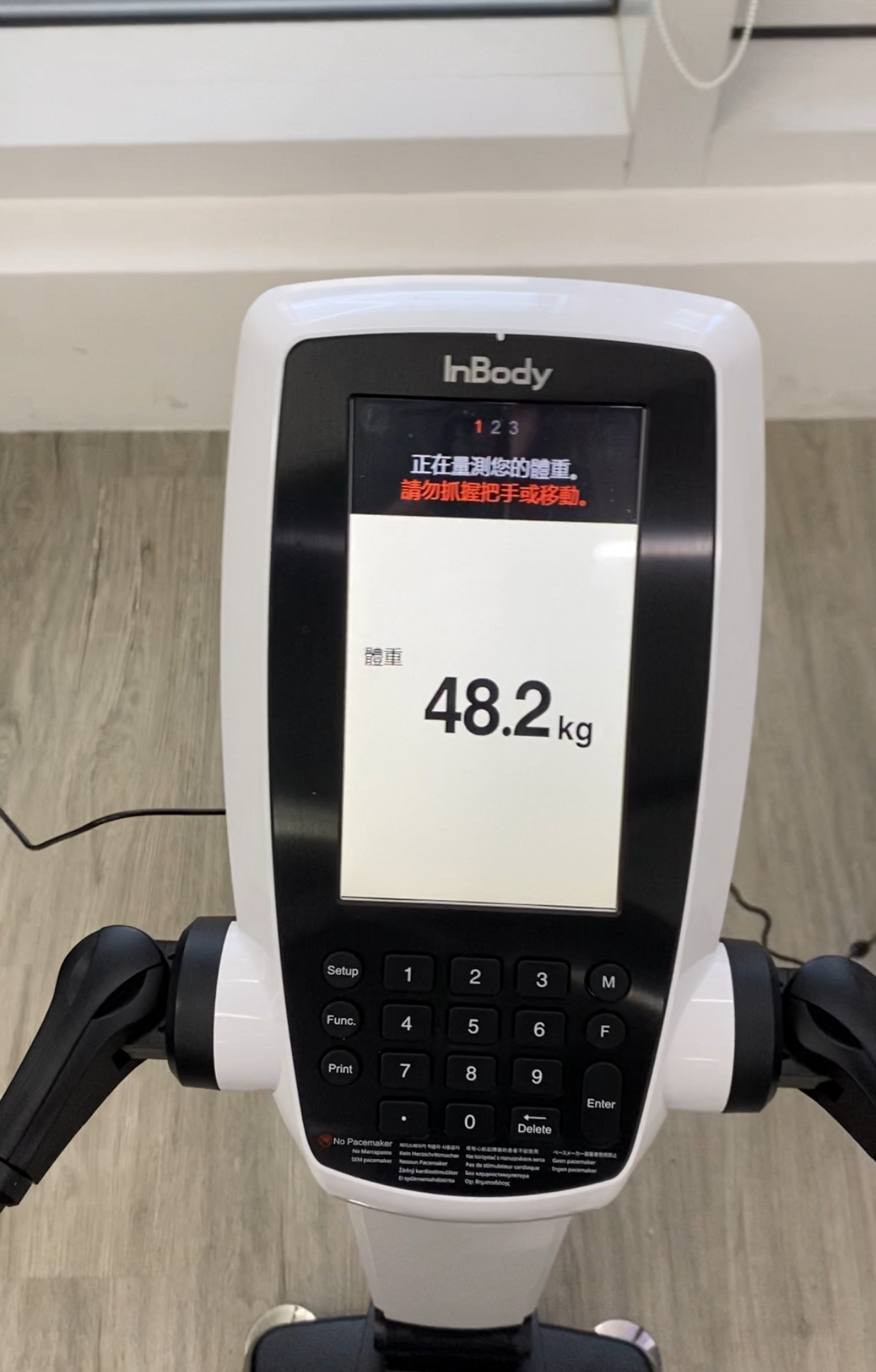
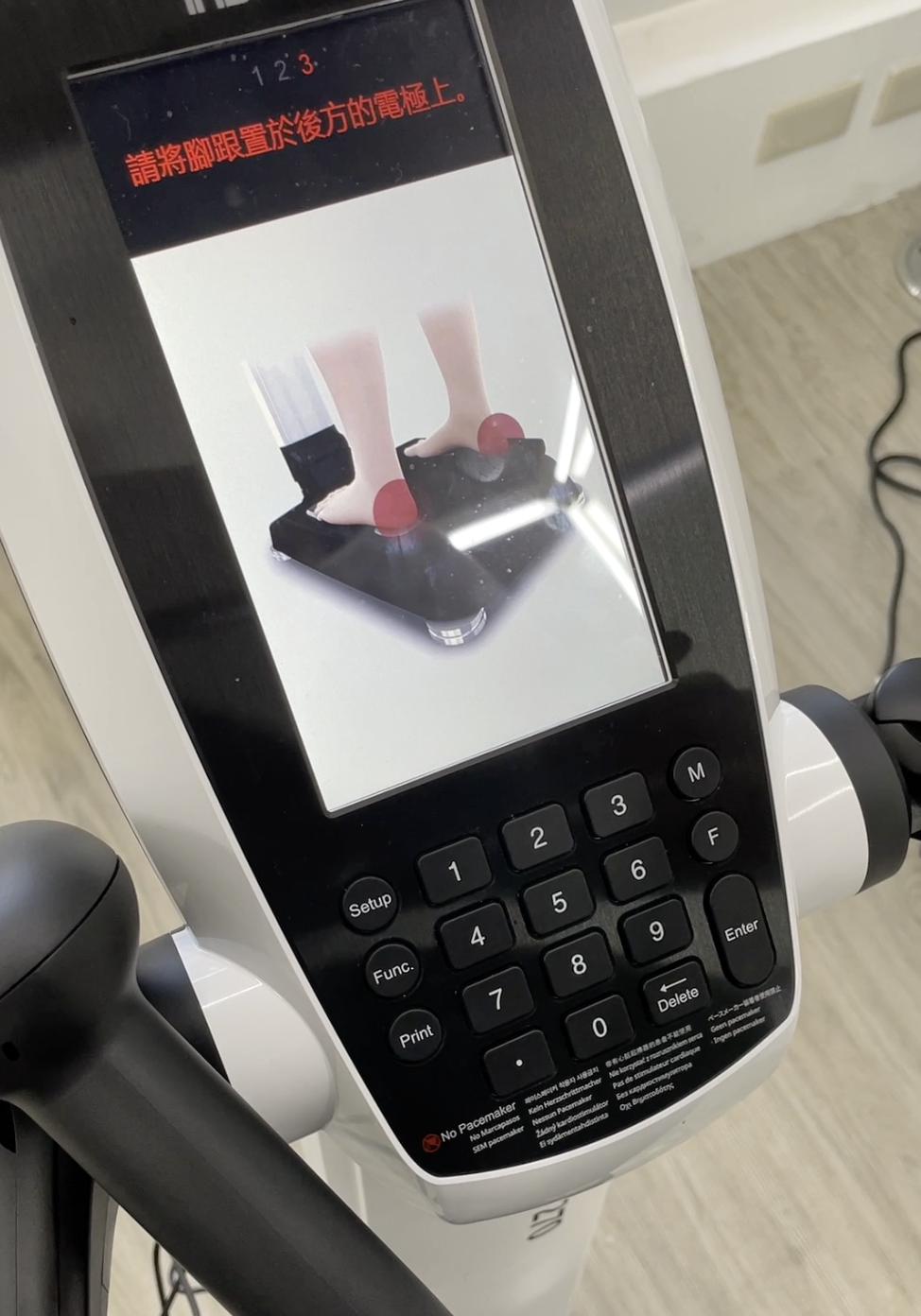
【STEP 4. 量測準備 / Preparation】
請根據InBody的引導,完成量測 / Follow the InBody guidance.
- 開始量測體重(請勿抓握把手或移動) / Measuring weight (Do not hold handles or move).
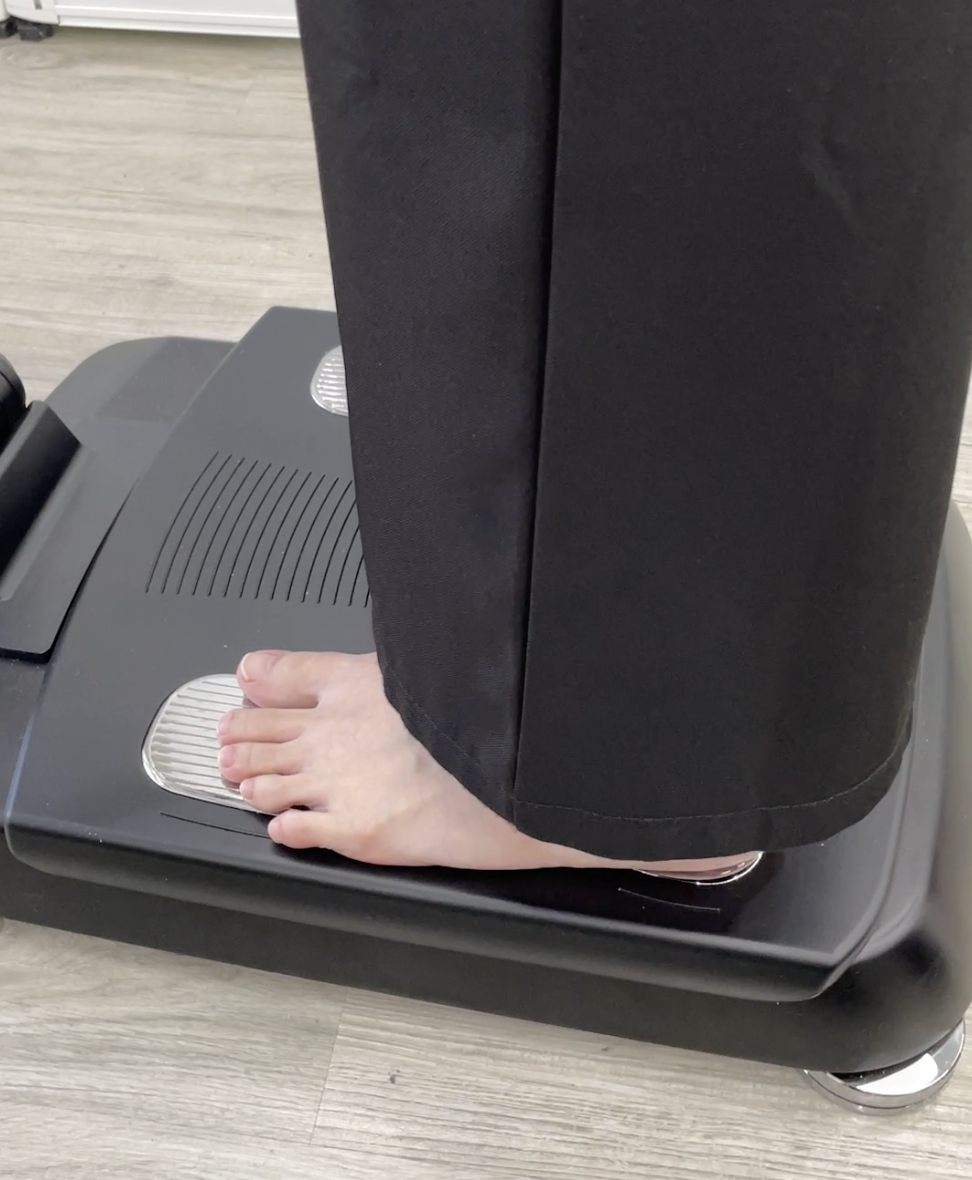
- 請將腳跟置於後方的電極上 / Place heels on the rear electrodes.
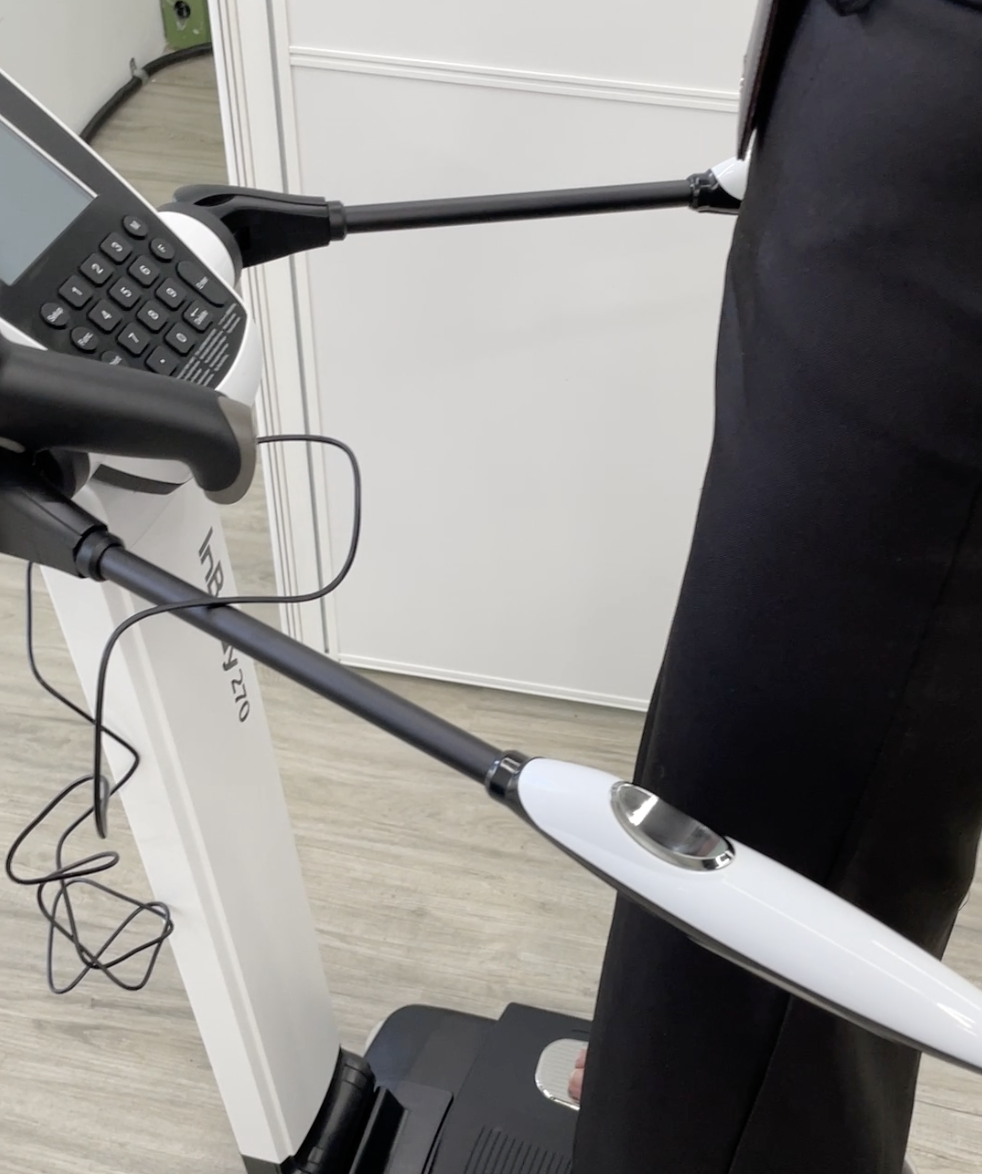
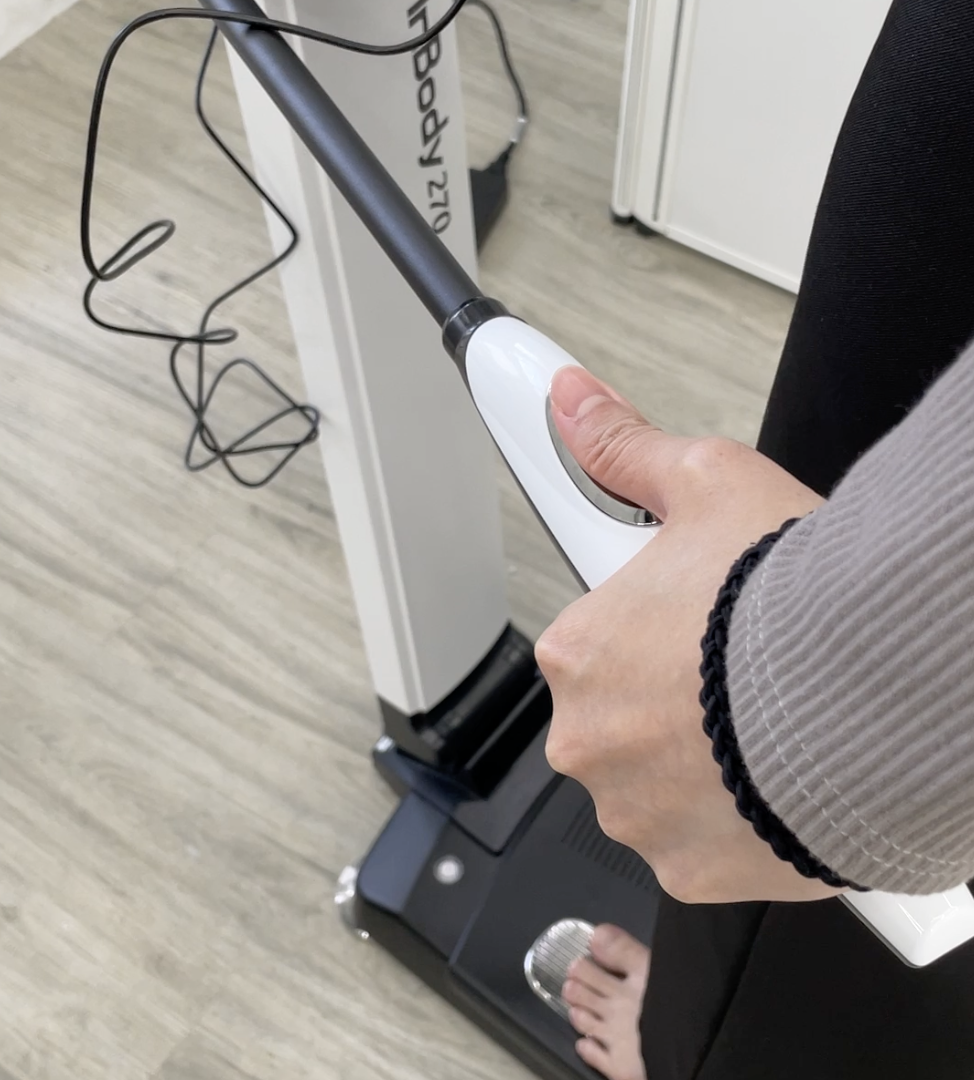
- 手握兩側把手,並將大拇指置於把手凹槽 / Hold handles and place thumbs on the grooves.
【STEP 5. 開始量測 / Measurement】
請根據InBody的引導,完成量測 / Follow the InBody guidance.
- 保持手臂伸直,雙臂不要觸及身體兩側 / Keep arms straight and away from your body.
- InBody 檢測中 / InBody testing in progress...
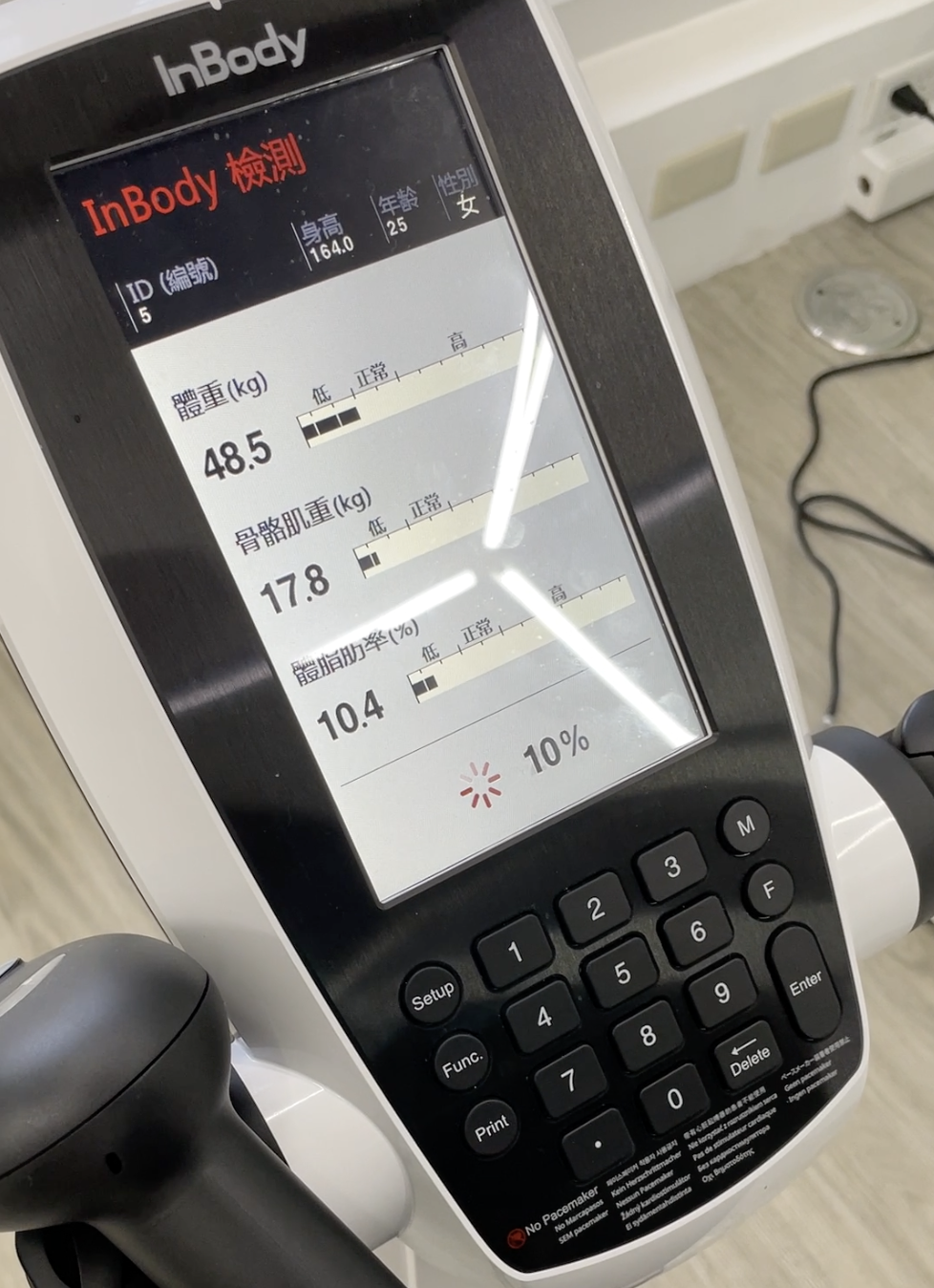
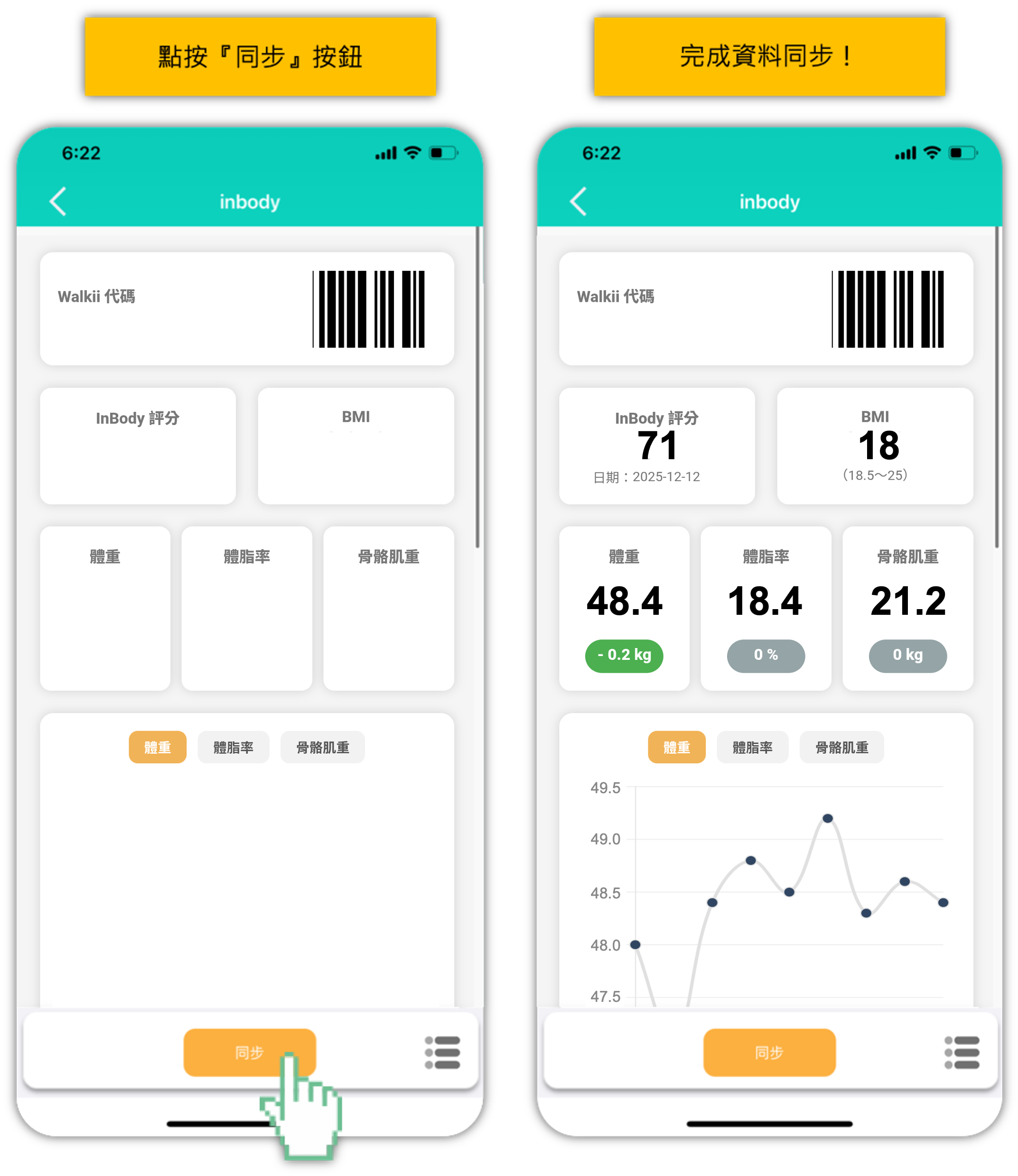
【STEP 6. 完成量測 同步Walkii / Finish & Sync】
- 量測完成 / Measurement complete.
- 回到Walkii APP,點按『同步』按鈕 / Return to the Walkii App and click "Sync."
- 完成資料同步! / Data synchronization finished!
Walkii APP 使用提醒
- 建議同仁在活動期間勿移除APP,以免造成重新載入資料遺失。如需重新安裝或更換手機,請先確認帳號有使用Email 綁定,更換後使用Email 登入APP即可。
- 參加本活動限定使用Walkii APP。
- 活動主辦單位會核對並保留所有修正紀錄的權利,如有異常數據將可不採計,主辦單位可取消活動資格,參加者不得異議。
【 健走任務 】注意事項
- 請開啟Apple Health(IOS)/Google Fit(Android)同步。
- 每日開啟APP點選任務卡內的『上傳數據』按鈕上傳當日數據。 如當日忘記上傳數據,可使用APP內的『數據補登』功能,七日內的紀錄皆可上傳。
- 最後補登日:活動結束後一天;請同仁在這天完成最後七天所有的數據上傳。
- Apple Health(IOS)/Google Fit(Android)內同時具有穿戴裝置與手機紀錄時,將會以紀錄較高的一方作為數據紀錄。
- Android手機用戶如配戴Garmin手錶,請於Walkii Garmin connect 頁面完成帳號同步。
【 體感任務 】注意事項
- 使用前請確認是否已開啟相機權限。
- 請穿著運動鞋或是於瑜珈墊上進行體感挑戰。
- 請準備足夠的空間進行體感挑戰。
- 須評估個人當下的身體狀況,勿過度勉強,身體不適時應立即停止操作,避免發生危險。
【 超慢跑 】注意事項
-
請開啟Apple Health(IOS)/Google Fit(Android)同步。
-
執行超慢跑期間,請拿著手機跑超慢跑。
-
超慢跑無法使用手錶計算步數,僅能感測手機擺動的次數,請在執行時帶著手機進行超慢跑挑戰。
預設最低門檻:
- 5分鐘需達500步以上才算完成。
- 10分鐘需達1,000步以上才算完成。
- 15分鐘需達1,500步以上才算完成。
- 20分鐘需達2,000步以上才算完成。
- 30分鐘需達3,000步以上才算完成。
系統客服
-系統軟體問題-
LINE專人客服協助您處理程式與系統問題
[email protected] 客服時間 週一至週五